Export Features
Export layers (filtered or unfiltered) to various formats using the EXPORTING tab.
Overview
The EXPORTING tab allows you to export layers from your QGIS project to standalone datasets for:
- Sharing with colleagues or clients
- Analysis in other software
- Archiving snapshots of data
- Publishing web maps
- Reporting tabular data
Key Features:
- Multi-selection of layers to export
- Multiple output formats (GPKG, Shapefile, GeoJSON, etc.)
- CRS transformation (re-projection)
- Style export (QML, SLD, ArcGIS)
- Batch mode (separate files per layer)
- ZIP compression for delivery
Layers can be exported with or without filters applied. If you've used the FILTERING tab to create filtered subsets, those filters are preserved during export. To export unfiltered data, remove filters first in the FILTERING tab.
EXPORTING Tab Components
Layer Selection
Select which layers to export from your QGIS project:
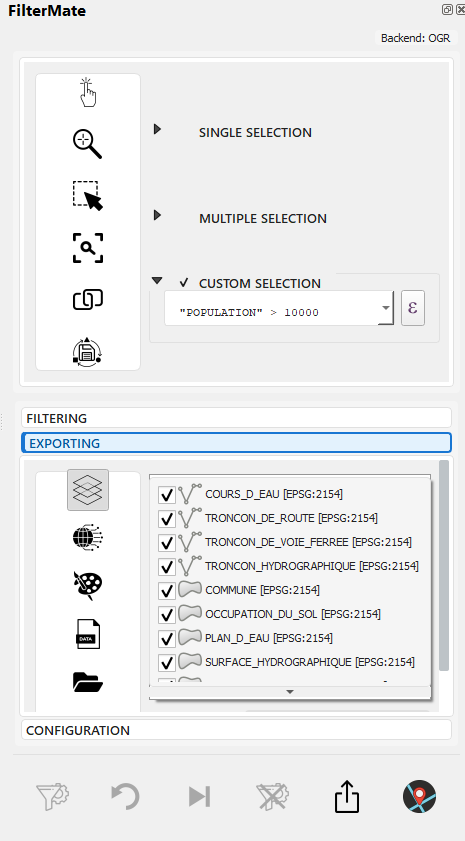
Check one or more layers to export
Features:
- Multi-selection: Export multiple layers at once
- Geometry indicators: Visual icons for point/line/polygon layers
- Feature count: Shows current feature count (respects active filters)
- Backend info: Displays data source (PostgreSQL⚡, Spatialite, OGR)
Format Selection
Choose the output format for exported data:
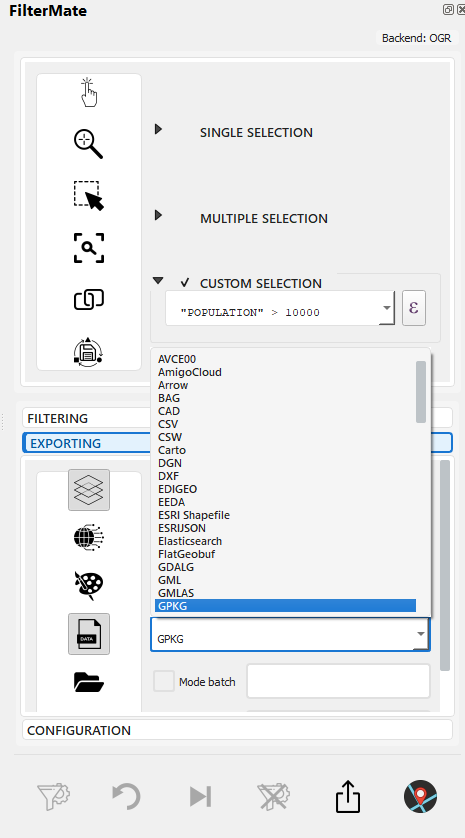
Dropdown with available export formats
Supported Formats
| Format | Type | Best For | Max Size | Extension |
|---|---|---|---|---|
| GeoPackage | Vector | General use, large datasets | Unlimited | .gpkg |
| Shapefile | Vector | Legacy compatibility | 2 GB | .shp |
| GeoJSON | Vector | Web mapping, APIs | ~500 MB | .geojson |
| KML/KMZ | Vector | Google Earth, mobile | ~100 MB | .kml, .kmz |
| CSV | Tabular | Spreadsheets, coordinates only | Unlimited | .csv |
| PostGIS | Database | Large datasets, enterprise | Unlimited | (database) |
| Spatialite | Database | Medium datasets, portable | ~140 TB | .sqlite |
CRS Transformation
Re-project layers during export to a different coordinate system:
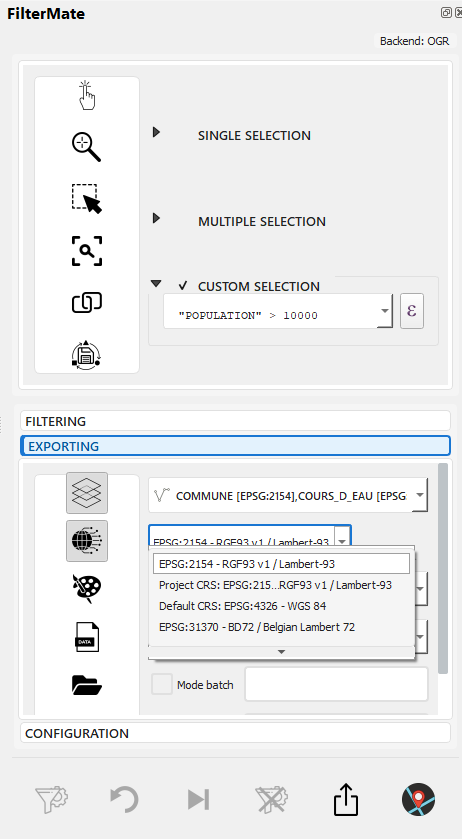
QgsProjectionSelectionWidget for CRS selection
Features:
- Choose any EPSG code or custom CRS
- Common CRS presets (WGS84, Web Mercator, local projections)
- On-the-fly reprojection during export
- Preserves original layer (no modification)
Common CRS Transformations:
Original → Export CRS    | Use Case
-------------------------|----------------------------------
EPSG:4326 → EPSG:3857   | Web mapping (Leaflet, OpenLayers)
Local → EPSG:4326        | GPS compatibility
EPSG:4326 → UTM zone    | Accurate distance measurements
Various → Single CRS     | Harmonize multi-source data
Style Export
Export layer styling alongside data:
--> Choose style format: QML (QGIS), SLD (Standard), or ArcGIS
Available Formats:
- QML (QGIS Style) - Full QGIS styling, preserves all features
- SLD (Styled Layer Descriptor) - OGC standard, works in GeoServer, MapServer
- ArcGIS - ArcGIS-compatible styling for Esri software
Style Export Behavior:
Format     | Includes                    | Compatible With
-----------|----------------------------|---------------------------
QML        | Full QGIS style tree       | QGIS only
SLD        | Basic symbology + labels   | GeoServer, MapServer, QGIS
ArcGIS     | Esri symbology             | ArcGIS Desktop, ArcGIS Pro
Output Options
Configure destination and delivery mode:
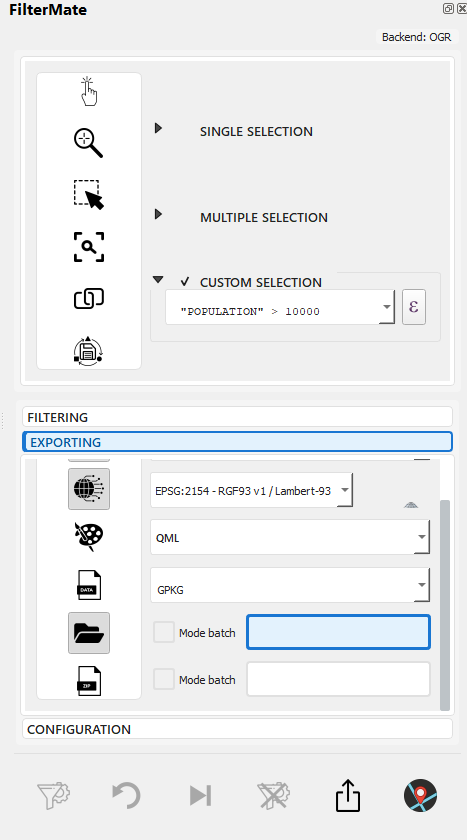
QgsFileWidget for folder selection
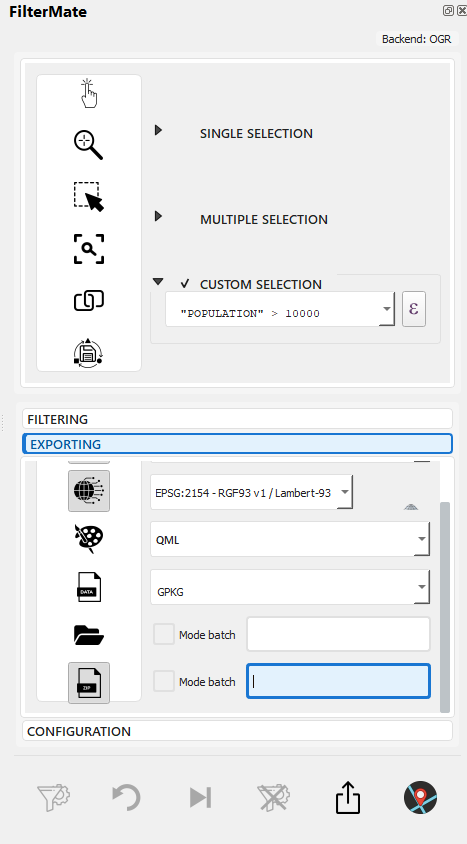
Checkboxes for Batch mode and ZIP compression
Options:
- Output Folder: Choose destination directory
- Batch Mode: Export each layer to a separate file (vs single file for all)
- ZIP Compression: Automatically compress output for delivery
Batch Mode Comparison:
Normal Mode:
output_folder/
  └── export.gpkg (contains all layers)

Batch Mode:
output_folder/
  ├── layer1.gpkg
  ├── layer2.gpkg
  └── layer3.gpkg

Batch + ZIP:
output_folder/
  └── export_2024-12-09.zip
      ├── layer1.gpkg
      ├── layer2.gpkg
      └── layer3.gpkg
Export Workflow
Complete export process from EXPORTING tab:
Step-by-Step Example: Export After Filtering
Scenario: Export buildings within 200m of roads (from FILTERING tab) to GeoPackage
--> 1. FILTERING tab: Filter applied, 3,847 buildings found
--> 2. Switch to EXPORTING tab
--> 3. Select "buildings" layer to export (filtered subset will be exported)
--> 4. Configure: Format=GPKG, CRS=EPSG:3857 (Web Mercator), Styles=QML
All indicators active:
- Has Layers to Export ✓
- Has Datatype (GPKG) ✓
- Has Projection (EPSG:3857) ✓
- Has Styles (QML) ✓
--> 5. Select output folder + filename
--> 6. Click EXPORT button → Progress bar shows processing
-->
7. Success notification with output path: C:/exports/buildings_filtered.gpkg (3,847 features, 2.3 MB)
Result:
- File created:
buildings_filtered.gpkg - Style file:
buildings_filtered.qml(in same folder) - CRS: EPSG:3857 (reprojected from original EPSG:4326)
- Features: 3,847 (filtered subset only)
Format Details
GeoPackage (.gpkg)
Recommended format for most use cases.
Advantages:
- ✅ Single file (portable)
- ✅ Unlimited size
- ✅ Multiple layers per file
- ✅ Spatial indexes built-in
- ✅ Open standard (OGC)
- ✅ Fast performance
- ✅ Supports all geometry types
Limitations:
- ⚠️ Requires GDAL 2.0+ (standard in modern QGIS)
When to Use:
- Default choice for most exports
- Large datasets (>100k features)
- Multi-layer exports
- Long-term archiving
Export Example:
output_file = "/path/to/export.gpkg"
layer_name = "filtered_features"
# Single file, multiple layers possible
Shapefile (.shp)
Legacy format for backward compatibility.
Advantages:
- ✅ Universal compatibility
- ✅ Widely supported
- ✅ Simple structure
Limitations:
- ❌ 2 GB file size limit
- ❌ 10-character field name limit
- ❌ Limited data types
- ❌ Multiple files (.shp, .dbf, .shx, .prj)
- ❌ No mixed geometry types
- ⚠️ Encoding issues (non-ASCII characters)
When to Use:
- Required by legacy software
- Sharing with ArcGIS Desktop 9.x users
- Simple, small datasets
Recommendations:
- Use GeoPackage instead when possible
- Keep feature count < 100k
- Avoid long field names
- Test encoding with non-ASCII characters
Export Example:
output_file = "/path/to/export.shp"
# Creates .shp, .dbf, .shx, .prj files
GeoJSON (.geojson)
Text-based format for web applications.
Advantages:
- ✅ Human-readable
- ✅ Web-friendly
- ✅ JavaScript native
- ✅ API integration
- ✅ Version control friendly
Limitations:
- ⚠️ Large file sizes (text format)
- ⚠️ Slower performance than binary formats
- ⚠️ No spatial indexes
- ⚠️ WGS84 (EPSG:4326) recommended
When to Use:
- Web mapping (Leaflet, Mapbox)
- REST APIs
- Small to medium datasets (<10k features)
- Git version control
Export Example:
output_file = "/path/to/export.geojson"
crs = "EPSG:4326"  # WGS84 recommended for web
KML/KMZ (.kml, .kmz)
Format for Google Earth and mobile apps.
Advantages:
- ✅ Google Earth compatibility
- ✅ KMZ includes styling and images
- ✅ Mobile app support
- ✅ Human-readable (KML)
Limitations:
- ❌ Limited attribute support
- ❌ Styling complexity
- ⚠️ Performance issues with large datasets
- ⚠️ WGS84 only (EPSG:4326)
When to Use:
- Google Earth visualization
- Mobile field apps
- Stakeholder presentations
- Public engagement
Export Example:
output_file = "/path/to/export.kmz"  # Compressed
# or
output_file = "/path/to/export.kml"  # Text
CSV (.csv)
Tabular format for coordinates and attributes.
Advantages:
- ✅ Universal spreadsheet compatibility
- ✅ Small file size
- ✅ Easy to edit
- ✅ Database import friendly
Limitations:
- ❌ No geometry (only X,Y coordinates for points)
- ❌ No spatial reference
- ❌ No styling
- ⚠️ Points only (no lines/polygons)
When to Use:
- Point coordinates only
- Excel/spreadsheet analysis
- Attribute-only reports
- Database imports
Export Example:
output_file = "/path/to/export.csv"
# Includes X, Y columns for point geometry
# GEOMETRY_AS: 'AS_XY' or 'AS_WKT'
PostGIS (PostgreSQL)
Export to PostgreSQL database with PostGIS extension.
Advantages:
- ✅ Best performance
- ✅ Unlimited size
- ✅ Multi-user access
- ✅ Spatial indexes
- ✅ Advanced querying
- ✅ Enterprise features
Limitations:
- ⚠️ Requires PostgreSQL + PostGIS
- ⚠️ Network setup needed
- ⚠️ More complex administration
When to Use:
- Enterprise environments
- Large datasets (>1M features)
- Multi-user collaboration
- Continuous updates
- Integration with backend systems
Export Example:
connection = "postgresql://user:password@host:5432/database"
schema = "public"
table_name = "filtered_features"
Spatialite (.sqlite)
Lightweight database file.
Advantages:
- ✅ Single file
- ✅ Spatial indexes
- ✅ SQL queries
- ✅ Good performance
- ✅ No server needed
Limitations:
- ⚠️ Slower than PostGIS
- ⚠️ Single-writer limitation
- ⚠️ 140 TB theoretical max
When to Use:
- Portable databases
- Medium datasets (10k-1M features)
- Offline work
- Desktop applications
Export Example:
output_file = "/path/to/export.sqlite"
table_name = "filtered_features"
Export Options
Coordinate Reference System (CRS)
Choose the target CRS for your export:
# Keep original CRS
crs = layer.crs()

# Transform to WGS84 (web/GPS)
crs = "EPSG:4326"

# Transform to local projection
crs = "EPSG:32633"  # UTM Zone 33N
Common CRS Choices:
- EPSG:4326 (WGS84) - Web maps, GPS, global
- EPSG:3857 (Web Mercator) - Web tiles
- EPSG:32xxx (UTM) - Local projected, metric
- Original CRS - Maintain source projection
Field Selection
Export specific fields or all attributes:
# All fields
export_fields = None

# Selected fields only
export_fields = ['name', 'population', 'area', 'date']

# Exclude fields
exclude_fields = ['internal_id', 'temp_field']
Geometry Type
Control geometry export:
# Keep geometry (default)
geometry = True

# Attribute-only (no geometry)
geometry = False

# Simplify geometry (reduce size)
geometry = "simplified"
simplify_tolerance = 10  # meters
Encoding
Character encoding for text fields:
# UTF-8 (recommended, default)
encoding = "UTF-8"

# Latin-1 (Western Europe)
encoding = "ISO-8859-1"

# Windows-1252 (Windows default)
encoding = "CP1252"
Export Strategies
Large Dataset Export
For datasets > 100k features:
Recommendations:
- Use GeoPackage or PostGIS - Binary formats
- Enable spatial indexes - Faster subsequent access
- Batch processing - Export in chunks if needed
- Simplify geometry - Reduce vertex count if appropriate
Multi-Format Export
Export the same data to multiple formats:
# Export workflow
filter_applied = True

# Web version (GeoJSON)
export_geojson(crs="EPSG:4326", simplified=True)

# Desktop version (GeoPackage)
export_geopackage(crs=original_crs, full_precision=True)

# Spreadsheet version (CSV)
export_csv(coordinates="XY", attributes_only=False)
Incremental Exports
Export changes since last update:
# Filter by date
filter_expression = "last_modified >= '2024-01-01'"

# Export with timestamp
output_file = f"updates_{datetime.now().strftime('%Y%m%d')}.gpkg"
Practical Examples
Urban Planning Export
# Export filtered parcels for review
filter_expression = """
zone = 'commercial'
AND area > 5000
AND status = 'proposed'
"""

# Multiple formats for different stakeholders
export_geopackage("parcels_review.gpkg")  # GIS team
export_kml("parcels_review.kmz")  # Public presentation
export_csv("parcels_list.csv")  # Planning board
Environmental Monitoring
# Export monitoring sites with recent data
filter_expression = """
site_type = 'water_quality'
AND last_sample >= now() - interval '30 days'
AND parameter_count > 5
"""

# GeoJSON for web dashboard
export_geojson(
    output="monitoring_sites.geojson",
    crs="EPSG:4326",
    fields=['site_id', 'last_sample', 'status']
)
Emergency Response
# Export evacuation zones
filter_expression = """
intersects(
    $geometry,
    buffer(geometry(get_feature('hazard', 'status', 'active')), 2000)
)
AND occupancy > 0
"""

# KML for field teams
export_kml("evacuation_zones.kmz")

# GeoPackage for GIS analysis
export_geopackage("evacuation_analysis.gpkg")
Performance Optimization
Backend Comparison
| Backend | Export Speed | Recommended |
|---|---|---|
| PostgreSQL | ⚡⚡⚡⚡ Fastest | GeoPackage, PostGIS |
| Spatialite | ⚡⚡⚡ Fast | GeoPackage, Spatialite |
| OGR | ⚡⚡ Moderate | GeoPackage |
Optimization Tips
-
Simplify Geometry
# Reduce vertex count
simplify_tolerance = 10 # meters -
Select Necessary Fields
# Export only needed attributes
fields = ['id', 'name', 'status'] -
Use Appropriate Format
# Binary formats faster than text
GeoPackage > Shapefile > GeoJSON -
Enable Spatial Indexes
# For GeoPackage/Spatialite
create_spatial_index = True
Troubleshooting
Export Fails
Common Issues:
-
File Locked
- Close applications using the file
- Check file permissions
-
Disk Space
- Verify available space
- Use compression (KMZ, GPKG)
-
Invalid Geometries
-- Filter invalid geometries before export
is_valid($geometry) -
Encoding Issues
- Use UTF-8 encoding
- Test with sample features
Large File Size
Solutions:
-
Simplify geometry
simplify_tolerance = 10 # Reduce precision -
Reduce attributes
fields = ['essential_field_1', 'essential_field_2'] -
Use compression
# KMZ instead of KML
# GPKG has internal compression -
Split into tiles
# Export by region or grid
filter_expression = "region = 'north'"
Projection Issues
Solutions:
-
Verify source CRS
source_crs = layer.crs()
print(f"Source: {source_crs.authid()}") -
Transform explicitly
target_crs = "EPSG:4326" -
Check transformation accuracy
# Use appropriate transformation
# Especially for historic datums
Batch Export Examples
Multiple Filtered Layers
Export several layers with different configurations:
Scenario: Export 3 layers with different filters, formats, and CRS
Step 1 - Filter Layers (in FILTERING tab):
Layer 1 (parcels): zone = 'commercial'
Layer 2 (buildings): year_built > 2020
Layer 3 (roads): road_class = 'highway'
Step 2 - Configure Batch Export (in EXPORTING tab):
EXPORTING Tab Configuration:
- Layers selected: parcels, buildings, roads (all 3)
- Format: GeoPackage
- CRS: EPSG:3857 (Web Mercator)
- Styles: QML
- Output folder: C:/exports/
- Batch mode: ENABLED
- ZIP: ENABLED
Result:
C:/exports/export_2024-12-09.zip
  ├── parcels.gpkg (commercial zones, filtered)
  ├── parcels.qml
  ├── buildings.gpkg (recent buildings, filtered)
  ├── buildings.qml
  ├── roads.gpkg (highways, filtered)
  └── roads.qml
Benefits:
- Single operation exports all layers
- Each layer in separate file (batch mode)
- All reprojected to Web Mercator
- Styles preserved
- Compressed for delivery
Exporting Unfiltered Data
To export complete layers (without filters):
Option 1 - Remove Filters First (FILTERING tab):
- Switch to FILTERING tab
- Click RESET button to clear all filters
- Switch to EXPORTING tab
- Export as usual
Option 2 - Export Different Layers:
- Simply select layers that don't have filters applied
- EXPORTING tab exports current layer state
- With filters: EXPORTING tab exports only features matching current filters
- Without filters: Exports complete layer (all features)
- Check feature count in layer selector to verify what will be exported
Related Topics
- Filtering Basics - Create filters to export filtered subsets (FILTERING tab)
- Geometric Filtering - Apply spatial filters before export
- Buffer Operations - Proximity-based filtering before export
- Interface Overview - Complete EXPORTING tab component guide
- FILTERING tab: Create filtered subsets (optional)
- EXPLORING tab: Visualize and verify features (optional)
- EXPORTING tab: Export to various formats (filtered or unfiltered)
All three tabs work together to provide complete data processing workflow.
Next Steps
- Filter History - Reuse filter configurations for exports
- Interface Overview - Learn about all three main tabs